 blog
blog
Best Digital Assets for Personal Projects: 2026 Guide
Table of Contents
- Best Digital Assets for Personal Projects: What Actually Matters
- Templates, Printables and Digital Guides Worth Downloading
- Printable Wall Art: Choosing Pieces That Print Cleanly
- Clipart for Personal Projects: Where to Find It and What to Avoid
- How to Choose Digital Art Files Before You Buy
- Digital Download File Formats and Resolution Explained
- Free and Open-Source Asset Sources, Plus License Checks
- Organizing and Maintaining Your Digital Assets Long Term
- Frequently Asked Questions
Last Updated: October 20, 2026
Best Digital Assets for Personal Projects: What Actually Matters
The best digital assets for personal projects are files you can open, print, and reuse without fighting a license, a format, or a low-resolution image. The same questions come up: will this print cleanly, and can I actually use it?
This guide answers both: which file types hold up, where free sources are safe, and how to check a license before you download.
The best asset is not the prettiest one, it is the one that fits your project's output size and your software. A stunning design saved at web resolution is useless on a poster.
Digital assets are any intangible files you download and use, including templates, printables, ebooks, digital guides, stock photos, video footage, music, sound effects, graphics, design files, software, and apps. According to Wix's guide to digital products, these formats cover everything from online courses to printables and software, which is why the category is so broad.
Templates, Printables and Digital Guides Worth Downloading
Templates and printables are the highest-value downloads for most personal projects. A good template gives you structure; you fill in the content.
We group the useful ones into three buckets:
- Editable templates for planners, journals, and invitations. Look for editable files you can reopen and change.
- Printables for wall art, checklists, and gift tags. These are ready to print, no editing needed.
- Digital guides and ebooks for learning a skill before you buy supplies.
A common mistake is downloading a template that only opens in one program. The Shopify guide to digital products notes that templates and printables are among the most downloaded asset types, partly because they are reusable and scalable across projects.
Printable Wall Art: Choosing Pieces That Print Cleanly
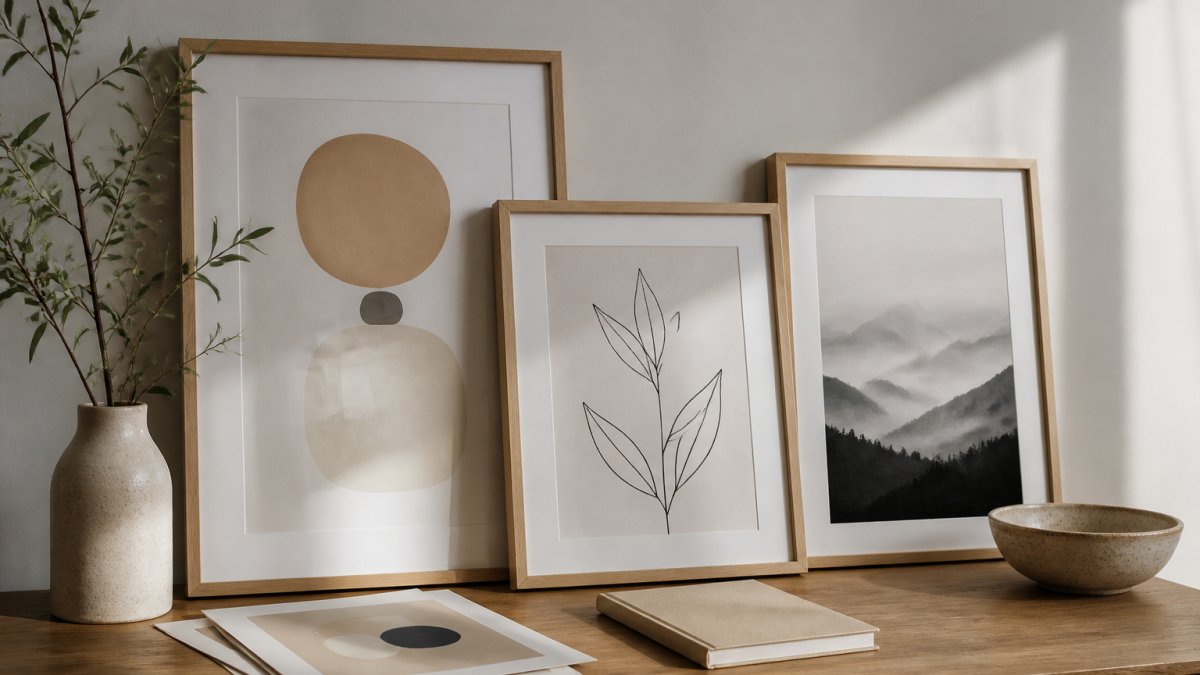
Printable wall art lives or dies on resolution and color. A file that looks sharp on a phone screen can turn soft and pixelated on a large frame, so check pixel dimensions before you buy.
Here is how we would choose a piece:
- Check the pixel size first. Multiply the print width in inches by 300 for a crisp result.
- Ask for a print test. Most sellers will share a small preview at full resolution.
- Match the file to your frame. A file built for 8x10 inches will not stretch to 24x36 without loss.
Colors can look washed out because a file was saved in the wrong color space, not because the design is weak. A seller who knows their files will tell you which color space they used.
Clipart for Personal Projects: Where to Find It and What to Avoid
Clipart for personal projects is where licensing gets messy. A cute graphic can be free for a birthday card and forbidden on a shirt you sell, the image is the same, the license is not.
Watch for these traps:
- "Free" that is not free. Some sites require attribution or a paid upgrade for clean files.
- Personal-use-only files. Fine for a journal page, not for anything you sell.
- Low-resolution previews. Free clipart is often a compressed preview of a paid file.
A good habit is to save the license text next to the file. You will not remember the terms in six months.
How to Choose Digital Art Files Before You Buy
Choosing digital art files comes down to five checks that take about two minutes. Run them every time.
- Resolution: does the pixel count match your largest intended print size?
- File format: can your software open it, and is there a flat version for printing?
- License: does it allow personal use, and does it allow printing by a print shop?
- Color space: is it set up for print or only for screens?
- Seller proof: can they show the file was made by them, not resold?
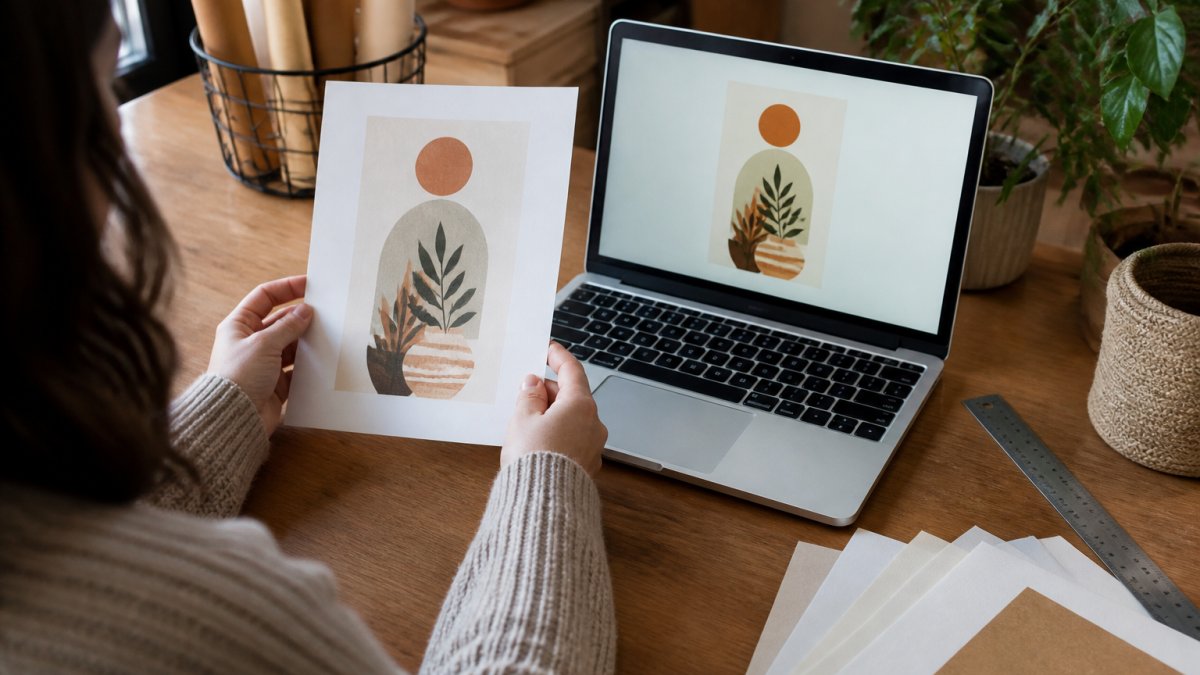
That last check matters. To tell a handcrafted file from a resold one, ask for the seller's process, layered source file, or a work-in-progress image. A real maker can answer; a reseller usually cannot.
| Check | What to Look For | Why It Matters |
|---|---|---|
| Resolution | 300 pixels per inch at target size | Prevents blurry prints |
| File format | PDF, PNG, JPG, or editable source | Ensures software compatibility |
| License | Personal-use terms in writing | Avoids legal trouble |
| Color space | Print-ready profile noted | Keeps colors accurate |
| Seller proof | Process or source files | Confirms original work |
Digital Download File Formats and Resolution Explained
File formats and resolution decide whether your download is usable. Here is each common type in short.
- PDF: best for printables and guides. Keeps layout fixed and prints reliably.
- PNG: best for clipart and graphics with transparent backgrounds.
- JPG: best for photos and wall art. Small file, no transparency.
Resolution works on one rule: 300 pixels per inch for print. A file at 3000 x 2400 pixels prints cleanly at 10 x 8 inches.
Free and Open-Source Asset Sources, Plus License Checks
Most guides to digital assets assume you are buying or selling. For personal projects, start with free and open-source libraries, then verify the license before you build around a file. You do not need to monetize a project to need clean rights, you need them to share, print, publish, or hand the project to someone else without worry.
Where to look first
- Public domain and government collections. Many national libraries, archives, and government agencies publish images, maps, and documents with plainly stated public-domain terms, the safest starting point, since rights are written in plain language on the item page.
- Museum open-access programs. A growing number of museums release collection images under open licenses or public domain. Check the individual object page, not the museum homepage, because terms can vary by work.
- Open-license media libraries. Sites such as Wikimedia Commons and Openverse host images, audio, and video under Creative Commons or public-domain terms. They are indexes, the license lives on the source page, so follow the link back.
The two license families you will meet most
Creative Commons (CC) licenses come in several variants, and the differences matter:
- CC0 / public domain dedication: no attribution required, commercial use allowed. The closest thing to "do anything."
- CC BY: attribution required. You must credit the creator in the way the license specifies.
- CC BY-SA: attribution plus share-alike. If you adapt the asset, your adaptation must carry the same license, a real constraint for remix projects (Deed - Attribution-ShareAlike 4.0 International).
Public domain means the copyright has expired or been waived. No attribution is legally required, though crediting the source is good practice and helps you trace the file later.
A license check you can run in two minutes
- Is the license stated on the item page, not just the site homepage?
- Does it require attribution, and exactly how must you credit it?
- Does it allow personal use only, or commercial use too?
Model and property releases
Licenses cover copyright, not people or places. If an image shows a recognizable person or private property, a release may be needed for certain uses. For a private project this is rarely an issue; for anything you publish or print publicly, check whether the source states that releases are on file. When in doubt, choose a different asset.
Organizing and Maintaining Your Digital Assets Long Term
"Make folders and back up" fails the moment a personal project grows past a handful of files. What you need is a workflow that survives version changes, software updates, and the slow accumulation of forgotten downloads. Here is a system built for personal projects rather than storefronts.
A naming rule that scales
Use a consistent pattern so files sort predictably and remain findable without opening them:
project-name_asset-type_version_date
For example: kitchen-remodel_moodboard_v03_2026-10-20. The date at the end sorts chronologically; the version number prevents overwriting; the asset type lets you filter by kind. Avoid spaces and special characters, they break scripts, cloud sync, and cross-platform transfers.
Folder structure by project, not by file type
Sorting by file type feels tidy but breaks down when a project needs its assets together. Structure by project instead:
- One root folder named for the project area, such as
PortfolioorHome Projects. - One subfolder per project, containing everything that project needs.
- Inside each project:
source/for editable files,exports/for final outputs, andlicenses/for saved terms.
Versioning without a server
You do not need Git for a personal project, but you do need a version habit:
- Never overwrite a source file. Save a new version with an incremented number (
v01,v02). - Keep the last two versions of any file you are actively editing; archive older ones.
- Note what changed in a plain-text
changelog.txtinside the project folder, one line per version is enough.
Metadata and findability
Filenames are not enough past a few hundred files. Add lightweight metadata so you can search by meaning, not just name:
- Tags in your file manager or cloud drive for project type, license type, and status (draft, final, archived).
- Alt text and descriptions saved in a sidecar text file for any image you might publish, this doubles as accessibility documentation.
- A simple index (a spreadsheet or markdown table) listing asset name, source URL, license, and date downloaded. This is the single highest-value maintenance habit for personal projects.
Backup and maintenance cadence
- 3-2-1 rule: three copies, on two different media, with one off-site, for personal projects, a local drive, a cloud sync, and an occasional external backup.
- Quarterly review: delete duplicates, confirm licenses are still saved, and check that source files still open in current software versions.
- Annual archive: move completed projects to an
archive/folder and compress them. Keep the index entry so you can find them later.
When software changes
Formats age. A five-year-old PSD may not open cleanly in a current editor, and an old font may no longer be licensed for new installs. During the quarterly review, open one file from each active project and confirm it still works. If a format is at risk, export a flat PDF or PNG alongside the source so the project stays usable even if the editable file does not.
Frequently Asked Questions
What digital assets are best for personal projects?
It depends on what you are making. Printable wall art suits decor and gallery walls, clipart and graphics suit journaling and card making, templates suit planners and stationery, and stock photos or music suit video and content projects. Pick by output first, then check the file formats and resolution match your software and print size. A 300 DPI file at the final print dimensions will always beat a higher-resolution file that needs heavy cropping.
How do I choose high-quality digital art files?
Check three things before you download: resolution, format and license. Resolution should be at least 300 DPI at the size you intend to print, formats should include PDF or SVG for scalable work plus PNG or JPG for everyday use, and the license should state clearly that personal use is allowed. Ask the seller for a preview at 100% zoom so you can inspect line quality and color before buying.
What file formats are best for digital art and design assets?
SVG is best for anything you will resize, such as clipart and cut files, because it scales without losing quality. PNG suits transparent overlays and graphics. JPG is fine for photos and finished wall art. PDF is the standard for printables and templates you intend to print. If a download only includes one format, confirm it matches your software before purchase.
Can I use purchased digital assets in personal projects?
Usually yes, but the license decides. Most sellers allow personal use such as printing for your own home, journaling, or gifting, while blocking resale or commercial redistribution. Read the usage rights on the listing, keep the receipt, and check whether attribution is required. If you plan to sell items made with the asset, look for an extended or commercial license instead.